- Open Settings → Billing and find the Invoice details card.
- Billed to: the company, church or person that pays. It can differ from your organization's display name.
- Fill in Country, City and Street address. Romanian invoices also need the county.
- Optionally add Company code (a Romanian CUI or an EU VAT number) and Trade register no. Buying as an individual? Leave both empty.
- Invoice email: where the invoice PDF is sent, often your accounting inbox. Then press Save billing details.
Good to know: Never enter a personal numeric code (CNP). The form refuses it. As an individual, leave Company code empty.
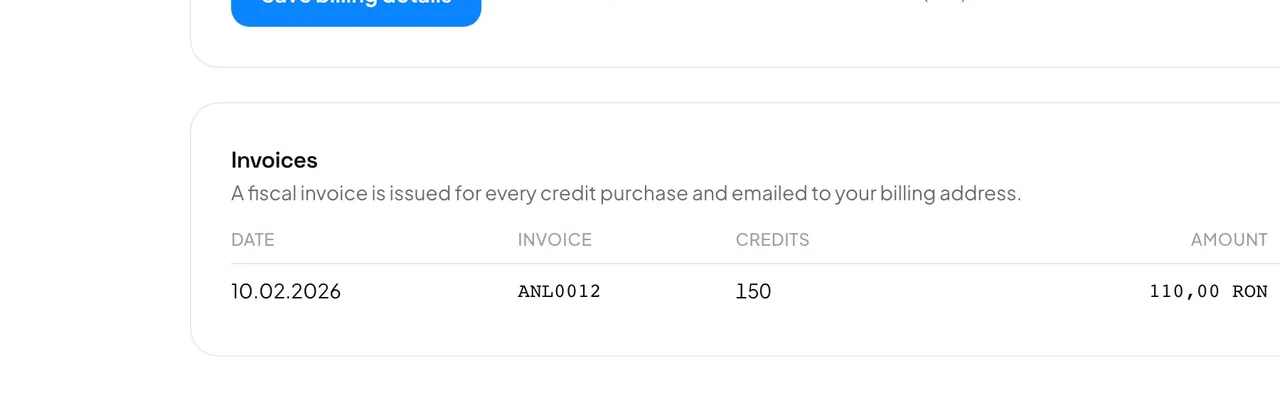
The Invoices card lists every invoice with its number, credits, amount and status. Press PDF to open one. Invoices for Romanian buyers are also filed with ANAF e-Factura (SPV) automatically; the status then reads Issued and filed.
- Who can see billing?
- Only organization admins can see and change the invoice details and the invoices. Other members see the credit balance, but cannot buy credits.
- I changed the address. Do old invoices change?
- No. An invoice keeps the details it was issued with. The new details apply to your next payment.