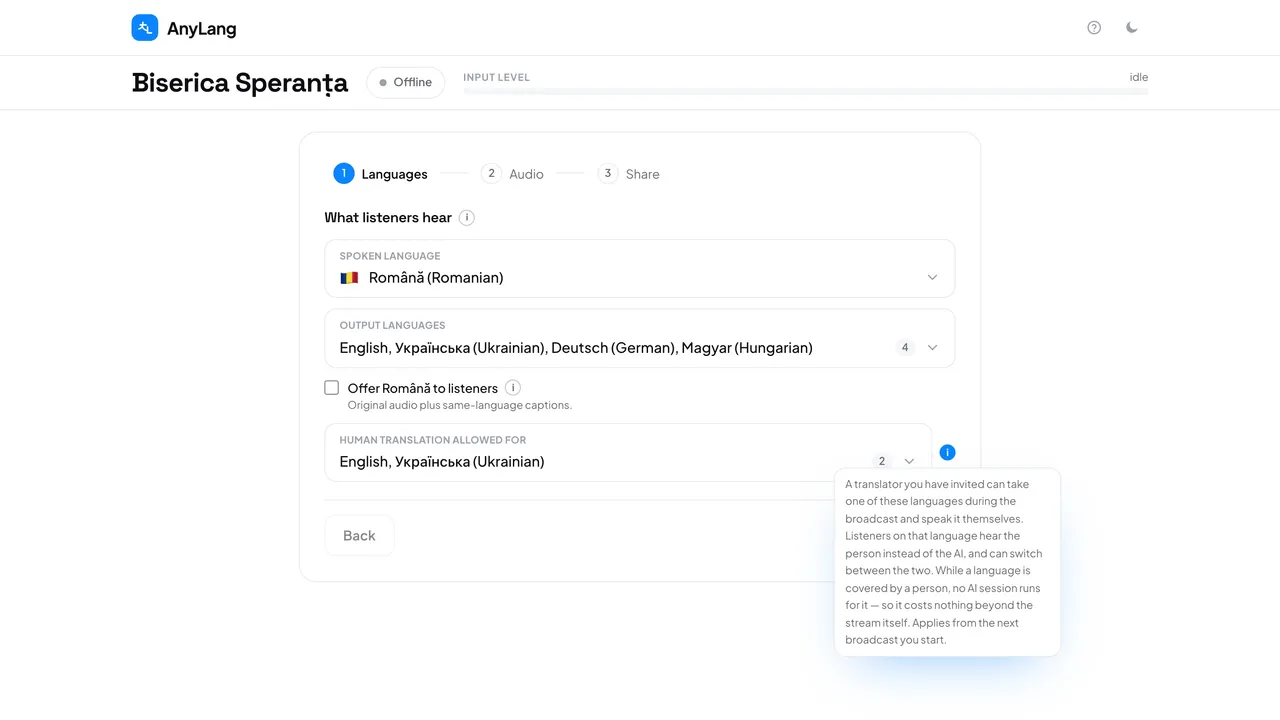
- Press New session.
- In the Languages step, choose the spoken language and the Output languages first.
- Open Human translation allowed for and tick the languages an interpreter may cover. Only output languages are offered.
- Start the broadcast. Your interpreter now sees those languages in the booth.
The choice is saved and applies from the next broadcast you start. Leave it empty and every language is translated by the AI only.
Good to know: While a person covers a language, no AI translation runs for it, so that language costs no AI time.
Careful: The list is locked while you are live. If an interpreter cannot find a language in the booth, it was not ticked here before Start — stop and start a new session to add it.