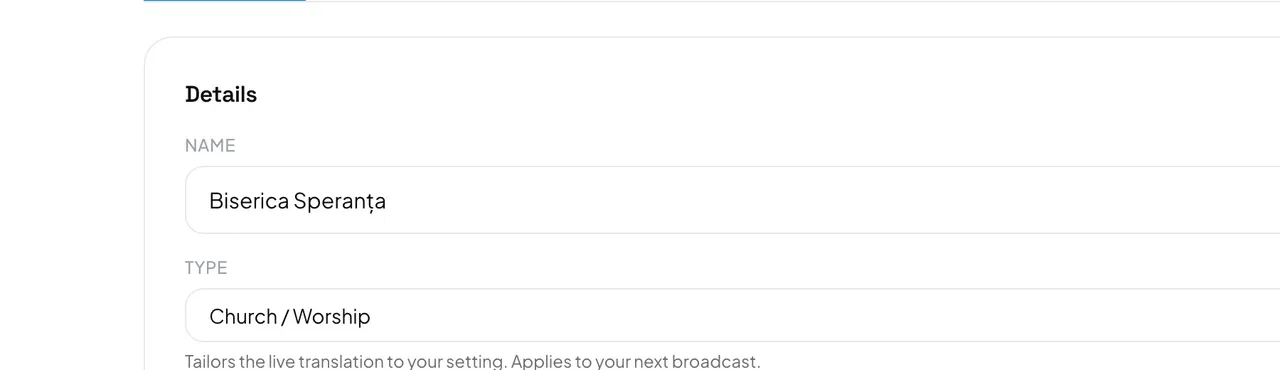
- In the top menu, press Settings. The Organization tab opens first, with the Details card.
- Name: type the new name and press Save. Listeners see it on the listener page.
- Type: choose what fits, for example Church / Worship or Conference / Convention. It saves as soon as you pick it.
- Logo: press Upload and choose an image. Use Replace or Remove to change it later.
The type tells the translation what kind of setting it works in, so words are read the right way — in a church, “brother” does not mean a relative. A new type applies from your next broadcast.
Good to know: With a logo, listeners see the logo instead of the name. A PNG with a transparent background works best; large images are shrunk automatically. A dark or light logo is inverted on screens where it would disappear.