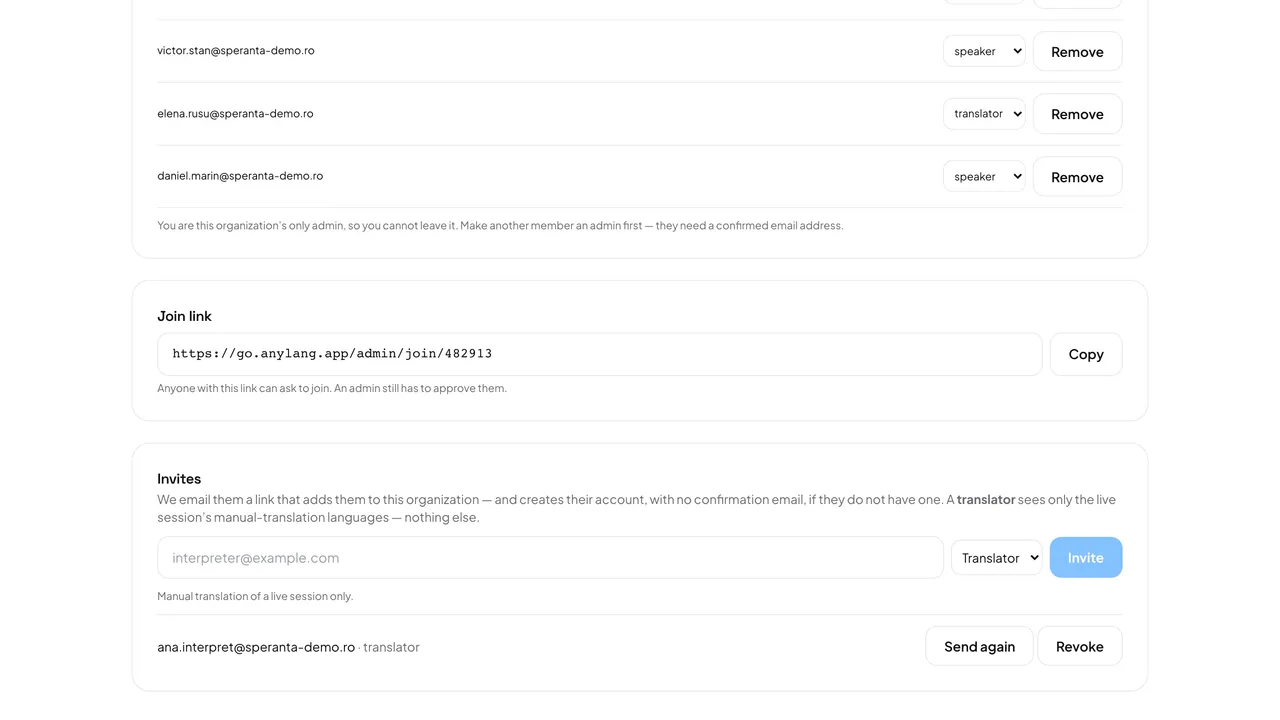
- Open Settings → Members. Under Join link, press Copy and send the link to your colleague.
- Your colleague opens it, creates an account or signs in, and presses Request to join. They can also type your organization code under Join an organization.
- The request appears under Pending requests, on the home page and in Members, with their email address.
- Press Approve to let them in, or Reject to turn them away.
Good to know: An approved person joins as a speaker. To give them another role, change it in the members list afterwards. Any member can copy the join link, but only admins see and answer requests.
Know their email already? An invitation adds them directly, with the role you choose, and needs no approval.