The translation works well without any of this. These settings make it sound like your own people: the right names, your tone, your terms. Only admins can edit them; other members can read them.
- Custom prompt: write what the translation must always know — proper names, tone, which Bible translation you use. Press Save.
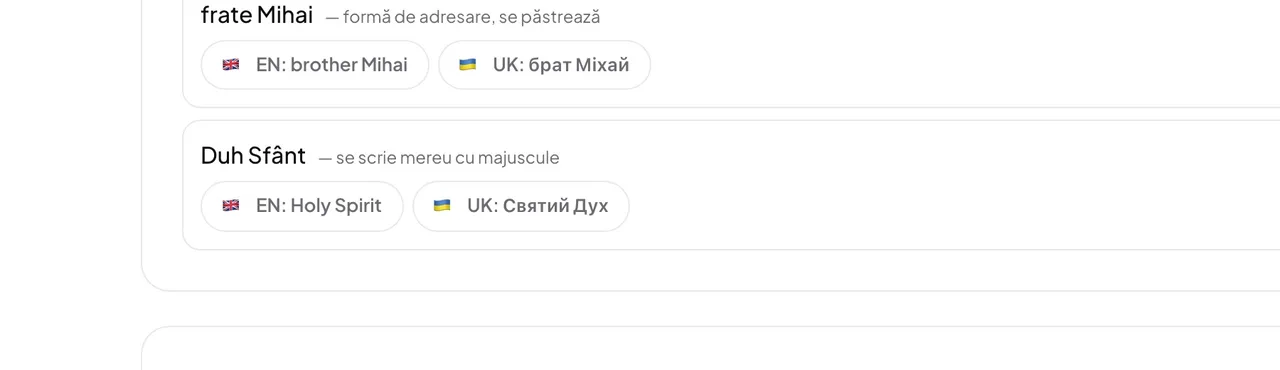
- Glossary: pick the spoken-language tab, press Add term, write the word under Term (as spoken), add a Note (optional), then under Rendering per language tick each language and type its translation. Press Save term.
- Rules per language: guidance for one output language only — for example, a formal tone in German. Press Save.
Good to know: Listeners never hear these instructions. A translation that is already running keeps what it started with, so a change shows up from the next broadcast. For one service only — the sermon theme, the verses — use the session context instead.