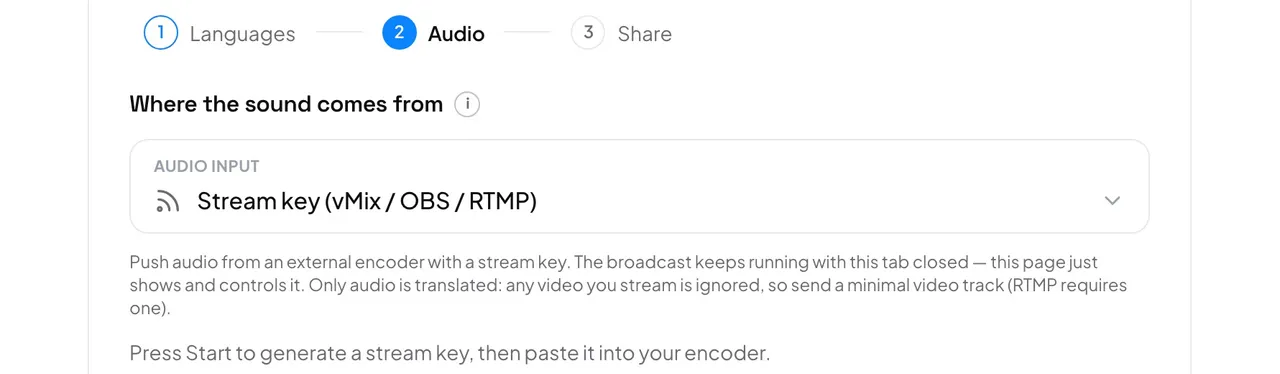
- Press New session. In step 2, Audio, set Audio input to Stream key (vMix / OBS / RTMP).
- Finish the other steps and press Start broadcast. No microphone is asked for.
- In the right column, under Audio, the key appears after a moment. Press Copy next to RTMP server URL and next to Stream key.
- In vMix or OBS, add a custom RTMP destination, paste both, and make sure your program audio is included. Start streaming.
Good to know: Only the sound is translated. RTMP still needs a video track, so send a minimal one: low resolution and bitrate, or a black image. The video never reaches the AI or the listeners.
The broadcast keeps running with the console closed: the encoder feeds it directly. Open the console only to watch it, pause it or press Stop.
Careful: The key is new for every broadcast and stops working when you press Stop. Paste the new one each service, and keep it private: anyone with it can send sound into your broadcast.