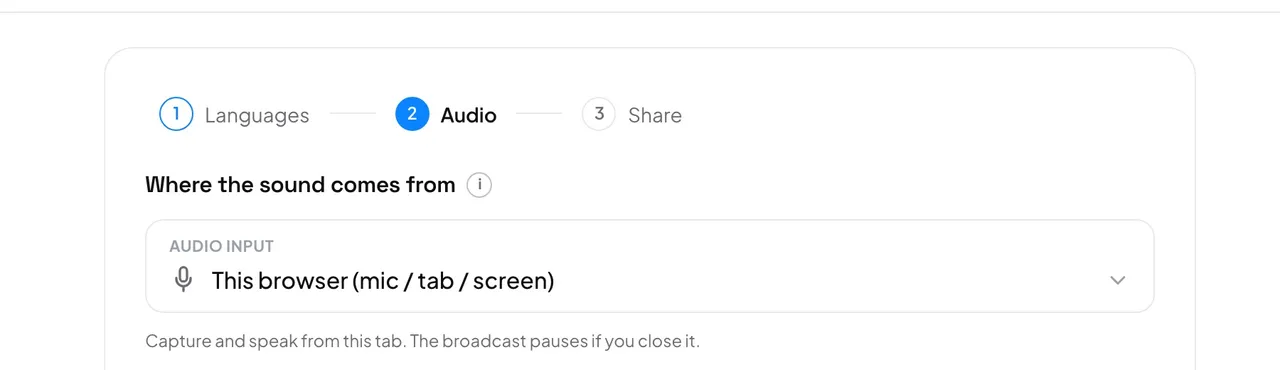
Audio input (browser or stream key) is fixed for the whole broadcast. The Input type is not: you can change it while live.
Input types
- Microphone: the computer's default microphone input. This is the usual choice when the room's sound comes into the computer.
- Browser tab: the sound of one tab, for example a video. The browser asks which tab; tick Share tab audio.
- System audio (Windows and other computers, not Mac): all the computer's sound. Choose Entire screen and turn on audio sharing.
- Input device (Mac): one exact input, such as a mixer or a USB sound card. Pick it under Device.
When you press Start broadcast, the browser asks for permission once. Press Allow, then watch Input level move as you speak.
- How do I send the computer's sound from a Mac?
- It needs one extra step. See computer sound on a Mac.
- The level meter does not move.
- See microphone not working.